
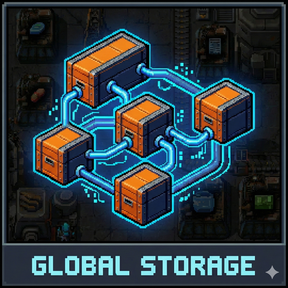
Global Network
A powerful networked storage system that lets you manage items across your entire factory through a unified global inventory pool.
Features
Global Chests - Shared Network Storage
- Place Global Chests and assign them a network ID (like "iron" or "copper")
- All chests with the same network ID share the same inventory instantly
- Set min/max requests per network to automate item distribution
- Copy-paste from assemblers to auto-configure requests from recipes
Global Provider Chests
- Pull specific items from the global pool into logistics networks
- Configure per-chest item requests
- Perfect for feeding assemblers or buffering items
Smart Item Distribution
- Surplus collection: Items above max are sent to global pool
- Demand fulfillment: Items below min are pulled from global pool
- Round-robin processing optimized for thousands of chests
Storage Limits
- Control what items enter your global storage
- Set numeric limits or unlimited storage per item
- Block unwanted items from clogging your system
Player Logistics Integration
- Your personal logistics requests pull from global storage
- Trash items automatically go into the global pool
- Pin items to HUD for real-time monitoring
Network Management GUI (Shift+G)
- View all networks and their status
- Browse global inventory with current quantities
- Configure storage limits from one central location
Perfect For
- Megabases - Scales efficiently with network-based processing
- Mall builds - Easy item distribution to crafting areas
- Organized storage - Logical grouping by network ID
How to Use
- Craft and place Global Chests
- Click a chest and set its Network ID
- Add requests (min/max) for items you need
- Place more chests with the same ID to expand capacity
- Use Shift+G to manage networks and view global inventory
Tips
- Copy-paste from an assembler to a chest to auto-fill requests with recipe ingredients
- Use meaningful network names like "science-red" or "green-circuits"
- Set storage limits to prevent overflow of unwanted items