
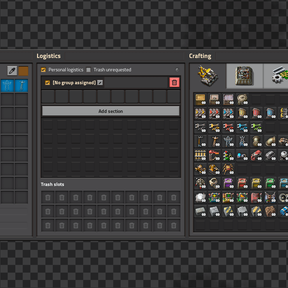
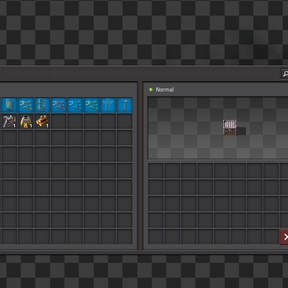
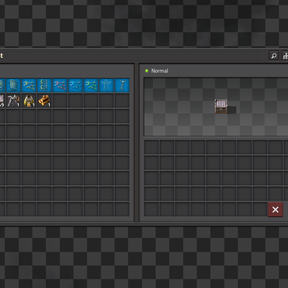
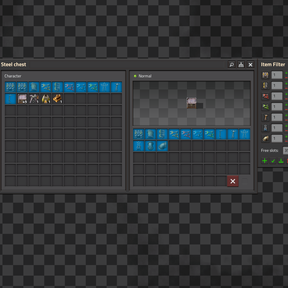
Item Filter adds a panel beside supported inventories so you can organise their slot filters in one place. Choose items, reserve slots for each, arrange their order and decide how much space to leave available for other items.
Each filter count represents the number of inventory slots reserved for that item.
Supported inventories
- Standard and logistic chests.
- Linked and infinity containers.
- Car trunks and Spidertron inventories.
- Cargo wagons.
- Your character’s main inventory, when enabled.
The container filtering setting adds slot filters and an inventory limit bar to normal, logistic, linked and infinity containers.
Editing filters
Open a supported inventory to display the Item Filter panel.
- Add: Create a filter row, select an item and enter how many slots to reserve.
- Plus / Minus: Increase or decrease the slot count. Reducing a row below one removes it.
- Up / Down: Change the order of filter rows. Hold Shift to move a row five positions.
- Sort: Arrange filter rows using Factorio’s item ordering.
- Import: Build a proposed layout from the items currently inside the inventory, calculating the slots needed for their stacks.
- Clear: Reset the proposed layout.
- Free slots: Choose how many additional slots remain available without an item filter. Remaining capacity is restricted using the inventory bar where supported.
- Apply: Apply the layout to the inventory. You can also press Enter while editing a panel text field.
Panel edits remain pending until you apply them. Changes to the inventory’s filters or limit bar refresh an unedited panel, while unapplied edits are preserved separately for each player.
Applying a layout rearranges the existing contents around the new filters. Items that cannot fit are transferred to your character’s inventory, with any remainder dropped near the container.
Copy filters from recipes
Copy an assembling machine’s settings using Factorio’s normal copy-settings action, then Shift + left-click a supported target inventory.
Item Filter adds missing filters based on the selected recipe, aiming for:
- Two slots for each item ingredient.
- One slot for each item product.
The operation uses available compatible slots and retains the recipe’s quality. Repeating it does not keep adding filters once the required number is present.
Fluids are excluded. Recipe-based copying skips requester and buffer chests so their normal logistics copy-and-paste behaviour remains available.
Save and reuse layouts
Use the blueprint button to transfer filter layouts between inventories or save them for later.
- Export: Empty your cursor, then click the blueprint button.
- Import: Hold a blueprint containing a filter layout, then click the blueprint button.
Exported layouts retain item selections, slot counts, row order and supported quality rules.
Space Age and quality
Space Age is optional. Item Filter supports its items and item qualities, including supported containers placed on space platforms.
You can select specific item qualities. Existing quality comparisons, any-quality filters and any-item quality filters are preserved when reapplying or exporting layouts.
Settings
- Add filters to containers: Startup setting controlling container slot filtering.
- Copy recipe filters: Enable or disable recipe-based copying for each player.
- Personal inventory panel: Enable or disable Item Filter for your character’s inventory.
- Column count: Display the filter editor in one to four columns; the default is two.
Requires Factorio 2.1 and Factorio Library (flib) 0.17.2 or later. Works with the base game or Space Age.