

TeleportFavorites
Instant teleportation to your favorite map locations in Factorio 2.0+
TeleportFavorites adds a favorites bar, map tag editor, and teleport history with shortcuts. Favorites, tags, and history stay per surface (Nauvis, Vulcanus, Gleba, etc, modded worlds too), and tag editing respects multiplayer ownership.
Quick start
👋 Shortest path from install to your first teleport.
- Enable the mod and load a save.
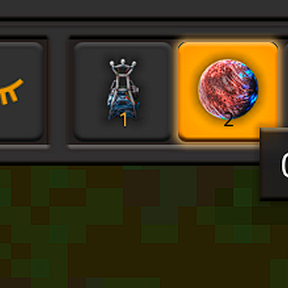
- Look at the top of the screen for the favorites bar.
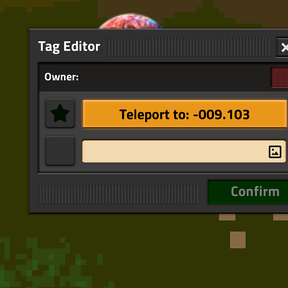
- Right-click the map to open the tag editor, set an icon or text, star it if you want it on the bar, and confirm.
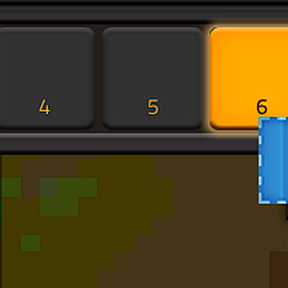
- Left-click a filled slot to teleport, or use Ctrl+1 through Ctrl+0 for slots 1–10 only.
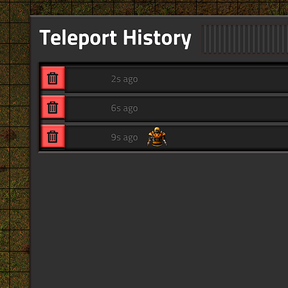
- Open teleport history from the bar or with Ctrl+Shift+T; use Ctrl+Minus / Ctrl+Equals to step through entries.
Details below: Getting Started, Map Tags, Teleport History, Sequential History Mode.
Features
- ⭐ Favorites bar — 10, 20, or 30 slots (setting); one-click teleport from the top of the screen
- 🗺️ Map tag editor — Right-click the map to create, edit, favorite, or delete tags with icons and text
- 📜 Teleport history — Scrollable list, keyboard navigation, destination-only (Standard) or full-hop (Sequential) recording. Switch modes with the history mode button on the favorites bar (next to the history button); hover for in-game tooltips
- 🔀 Drag and drop — Shift+left-click to drag slots on the bar
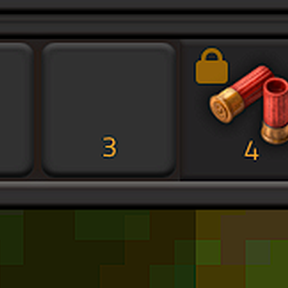
- 🔒 Slot locking — Ctrl+left-click locks a slot so it cannot be moved, overwritten, or dragged
- 🤝 Multiplayer-safe — Tag ownership by player name; only the creator or admins can edit or move a tag
- 🌍 Surface-aware — Favorites, tags, and history are stored per surface
- 🌐 Locales — Uses your game language where translations exist
Getting Started
📌 After installing the mod, look at the top of your screen for the favorites bar.
Favorites bar actions
- Teleport to a favorite — Left-click a slot
- Edit a favorite / open tag editor — Right-click a slot
- Lock / unlock a slot — Ctrl+left-click
- Start drag and drop — Shift+left-click, then click the destination slot
- Toggle bar visibility — Click the eye button
- Open teleport history — Click the history button, or Ctrl+Shift+T
Empty slots stay available until you fill them.
Clicks: Right-click opens this mod’s tag editor; left-click on the map is vanilla editor. To teleport with this mod, left-click a filled bar slot (or use hotkeys).
Map Tags
Creating and editing
- Right-click anywhere on the map to open the tag editor
- Choose an icon and/or enter text (at least one is required)
- Click the star to add the tag to your favorites bar
- Click Confirm to save
You can also right-click a favorite on the bar or an existing map tag to edit it.
When using TeleportFavorites, think right-click — it opens this mod’s tag editor, not the vanilla map tag UI. Left-click on the map stays vanilla; the only mod-specific left-click for “go there” is a filled slot on the favorites bar (or hotkeys).
Teleporting
- From the favorites bar: Left-click a filled slot
- From the tag editor: Use the teleport button
- Hotkeys: Ctrl+1 through Ctrl+0 teleport to favorites 1–10
You cannot teleport while you or your vehicle are moving — come to a full stop first.
Ownership and permissions
- Only the tag creator (or a server admin) can edit or move the tag
- Anyone can favorite a tag and teleport to it
- Ownership is tracked by player name for multiplayer consistency
Teleport History
⏮️ TeleportFavorites records teleport destinations (in Standard mode) so you can return to them later. Sequential mode instead records full hops (departure and destination); see Sequential History Mode.
What gets recorded
- Teleports from the favorites bar (click or hotkey)
- Teleports from the tag editor teleport button
What does not get recorded
- Moving through history itself (previous / next)
- Teleports from other mods or the console
Using history
- Open the history window from the favorites bar or Ctrl+Shift+T
- Click an entry to teleport there; the window can stay open for several jumps in a row
- History is per player and per surface
- Up to 128 entries; oldest entries drop off when the limit is exceeded
Keyboard shortcuts
- Toggle history window — Ctrl+Shift+T
- Previous entry — Ctrl+Minus
- Next entry — Ctrl+Equals
- First (oldest) entry — Ctrl+Shift+Minus
- Last (newest) entry — Ctrl+Shift+Equals
- Clear all history — Ctrl+Shift+Backspace (history window must be open)
Sequential History Mode (experimental)
In Standard mode, history is destination-only: each entry is where you arrived. In Sequential mode, history is full-hop: each teleport can add where you left from and where you went as separate steps so “Previous” can return you to your pre-teleport feet position. The mod portal summary calls this destination-only vs full-hop behavior.
Problem: 🤔 You teleport to a favorite, build elsewhere, then teleport again. In Standard mode, Previous might take you to an older destination, not the tile you stood on before the last jump.
Solution: Sequential mode pushes departure then destination onto the history stack when you teleport (subject to filtering below).
How it works
When you teleport in Sequential mode, two entries are added: first your departure position, then the destination. Ctrl+Minus once returns you to where you stood before that teleport; pressing again keeps stepping backward.
Filtering keeps noise down:
- Trivial hop (Sequential only) — If departure and destination are within 32 tiles of each other, that teleport is not recorded
- Stack collapse — A new GPS within 20 tiles of the top of the history stack is skipped (same rule used whenever an entry is pushed, including each step of a Sequential pair)
How navigation differs
Previous (Ctrl+Minus)
- Standard (destination-only): Previous destination
- Sequential (full-hop): One step back on the stack (first step is often your departure point)
Next (Ctrl+Equals)
- Standard (destination-only): Next destination
- Sequential (full-hop): One step forward on the stack
History window
- Standard (destination-only): One row per destination
- Sequential (full-hop): Departure and destination rows can alternate
How to toggle
Click the history mode button on the favorites bar (beside the history open button). The sprite shows which mode is active: a pointing-hand icon for Standard, a list-style icon for Sequential (button art only — history rows are not numbered in the list). Hover the button for localized tooltips (“History Mode: Standard / Sequential”).
Notes
- 🧪 Experimental — details may change in future versions
- Existing history remains valid when you switch modes
- Switching modes does not clear history
- Each player chooses their own mode in multiplayer
Multiplayer and surfaces
🛰️ Favorites, tags, and history are stored per surface so different planets and platforms stay separate
- Only the tag owner or admins may edit or move a tag; favoriting and teleporting stay open to everyone
- Player data is cleaned up when a player leaves the game
Surface switching
When you change surfaces (elevators, portals, commands, platforms), the favorites bar and history switch to that surface’s data automatically.
Settings
All settings are under Mod settings → Per player:
- Enable favorites — Default: On — Show the favorites bar and related UI
- Enable teleport history — Default: On — Record and show teleport history
- Sequential History Mode (experimental) — Default: Off — Record departure and destination in Sequential mode
- Max slots — Default: 10 — Slot count: 10, 20, or 30. Warning: lowering this permanently deletes favorites in slots above the new limit (including locked slots). Larger slot counts refresh more UI when the bar updates; pick the size you actually use.
Feedback, translations, and bugs
💬 TeleportFavorites follows your game language when a locale is available; community translations cover many languages.
Translations: Missing or wrong strings — please say so in the Teleport Favorites discussion on the Factorio mod portal.
Feedback and feature requests: Ideas, balance, and quality-of-life improvements are welcome in the Teleport Favorites discussion — a save or screenshot helps when describing UI or workflow wishes.
Bugs and unexpected behavior: Open a thread in the same discussion. Include Factorio version, mod version, single-player or multiplayer, and steps to reproduce if you can — that speeds up fixes.
FAQ
I can't teleport to my favorite.
Check for a valid landing spot and that you are not moving (and your vehicle is stopped if you are in one).
Can I teleport in a vehicle?
Yes. The vehicle teleports with you but you must be at a full stop.
Teleport on a space platform?
Not supported. Factorio’s Space Age rules for characters on space platforms are fragile—scripted teleports and can leave your character in an invalid or lethal state (outside the hub, vacuum, etc.). Travel to a planet (or otherwise leave the platform) first, then teleport.
Why can't I edit someone else's tag?
Only the creator or an admin can edit or move it. Anyone can favorite it and teleport.
What if I lower max slots?
Favorites above the new slot count are deleted permanently, even locked ones. Raising the limit again later does not bring them back.
Links
- Mod portal: TeleportFavorites
- Discussion: Teleport Favorites discussion
- Source and issues: GitHub
Attribution
This mod uses graphical assets from Factorio, © Wube Software Ltd. Used with permission under the Factorio modding terms. All rights reserved by Wube Software Ltd. These assets are only for use within Factorio and Factorio mods.
Some images are courtesy of icons8.com.