


A better GUI for managing the research queue, updated for Factorio 2.0
Description
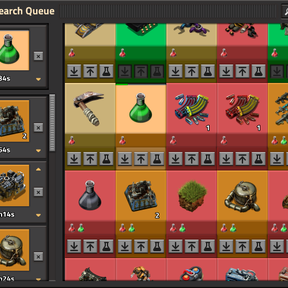
This mod adds a new GUI for managing a queue of research that's easier to use and more featured than the vanilla research queue. It is an updated version of Extended Research Queue by sh4dow who made it for Factorio 1.1
- Maintain a research queue of unlimited size
- Move technologies up and down in the queue
- Adding an unavailable technology to the queue will add all of its prerequisites as well
- Removing a technology from the queue will remove everything that has it as a prerequisite as well
- Easily search and filter technologies to research
- Queue up individual levels of infinite technologies
- Pause the research queue while you plan, then unpause and watch your queue go
- See estimated time to completion and total number of science packs needed for technologies in the queue (currently inaccurate in wait mode)
- Receive a chat notification when a research finishes (can turn off in mod settings)
- Works with any modded technologies and science packs
- In multiplayer, players on the same team will share the same research queue
- Option to pause the game while you plan your research (off by default, turn on in mod settings)
How to Use
To open the Improved Research Queue window, use the shortcut on your shortcut bar or press Shift+T. You will see a list of technologies in the center, the queue on the left, and settings/filters on the right. Hover over any element to see additional info and descriptions of how to use it.
All credits goes to the original authors, including pictures and description.