
下拉以查看中文说明。
Expend Toolbar
Overview
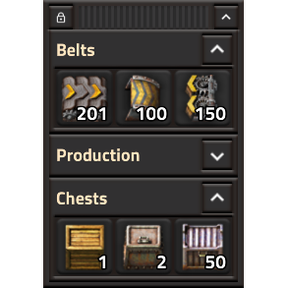
Expend Toolbar adds custom movable toolbars when the vanilla quickbar is not enough. You can place item slots, tool shortcuts, and inventory-aware buttons anywhere on the screen, then keep them visible while building or using remote view.
Features
- Keep one default draggable custom bar that starts with one page and can grow up to the configured column count.
- Add, delete, rename, and switch pages with the toolbar header and bottom page buttons; only the active page is shown.
- Rename toolbar pages by double-clicking a page button.
- Add items with the slot item selector and use saved slots as quick pickup buttons.
- Save normal items, blueprints, blueprint books, deconstruction planners, upgrade planners, and cursor records in toolbar slots. Real cursor stacks keep their exported contents and preview icons with signal quality markers; pure cursor records keep a lightweight blueprint-library record link and preview icons, then resolve the current linked record when copied back to the cursor, with matching tool-item fallback.
- Copy and paste the hovered row or the hovered numbered page with optional custom controls.
- Show item counts from the current view inventory directly on item slots.
- Show saved item quality markers on item slots.
- Show vanilla item tooltips on saved normal item slots, then append non-zero quality rows from low to high quality, labelled by player inventory and the current surface name; remote view shows only the current surface name. Blueprint-like tool slots keep the vanilla tool tooltip without mod-added saved-record text.
- Supports Alt + mouse wheel quality adjustment on normal toolbar item slots.
- Supports remote view, planet logistic networks, space platform hub inventories, vehicles, character trash, editor inventory, and god inventory. The toolbar is temporarily hidden in the remote starmap chart view when no planet, platform, entity, or logistic context is open.
- Custom bars can be moved by their drag anchor and hidden or shown with the toolbar shortcut.
Usage
Arrange the toolbar
- The toolbar is created automatically for each player and starts near the bottom center of the screen.
- Use the toolbar shortcut to show or hide the toolbar; the shortcut toggle matches the current visibility.
- Drag the striped anchor in the toolbar header to place it on the screen.
- Put item slots into any toolbar page.
Configure pages
- Set
Toolbar columnsin per-user mod settings. The default is 10 columns. - Each toolbar starts with one page.
- Add a page with the
+button in the toolbar header. The maximum page count equals the toolbar column count, so the narrowest page tab stays one slot wide. - Delete the current page with the trash button in the toolbar header. A toolbar always keeps at least one page.
- Each page keeps the configured horizontal slot count.
- The toolbar height follows the currently active page.
- Rows expand automatically when the last slot of the last row is occupied.
- Empty trailing rows shrink automatically when the previous row does not need the extra row.
- The bottom page buttons share the toolbar width; narrow buttons show page numbers, while wider buttons show page titles. Hover a page button to see the full title.
- Double-click a page button to rename that page.
Use item slots
- Left-click a slot to pick that item from the current available inventory.
- Left-click another toolbar slot after selecting a slot to move the saved entry there; the source slot is cleared.
- Middle-click or right-click a slot to clear it.
- Hover a counted item slot to see quality rows from low to high quality. Each row starts with the quality icon and then shows non-zero
Playercounts and the current surface name. Remote view has no player-inventory column, so it shows only the current surface name. Blueprint-like slots do not show inventory counts because those tools do not use stack counts as their toolbar meaning. - Normal item slot tooltips keep the vanilla item information, including placement, power, and build-condition sections when Factorio provides them. The mod appends only the non-zero labelled counts for each available quality. Blueprint-like tool slots use the vanilla tool tooltip and do not append saved details such as label, entity count, active book index, book size, stored export, or blueprint-library record link.
- Use Alt + mouse wheel while hovering a normal item slot to change the slot quality.
- Use the Factoriopedia control while hovering a slot to inspect the item.
- Use the pipette control while hovering a slot to copy that same saved selection to the cursor.
- Bind
Copy toolbar row or pageandPaste toolbar row or pagein controls if you want row/page duplication. Hover a slot row to copy or paste that row; hover a page number to copy or paste the whole page.
Inventory counts and logistic networks
- In normal character view, the number shown on a normal item slot is the count available from the player-facing main inventory group, including the character inventory, cursor stack, character trash, and enabled vehicle inventories. Blueprint, blueprint book, deconstruction planner, and upgrade planner slots do not show a count number.
- Personal-view logistic networks are shown in the tooltip under the current surface name beside the
Playercount. They help you judge nearby supply, but they do not inflate the slot's direct count overlay. - In remote planet view, logistic network contents are the main visible inventory for slot counts.
- On a space platform, the hub main and trash inventories are counted for remote-view slots.
- In the remote starmap chart view with no selected planet, platform, entity, or logistic context, the toolbar is hidden without changing your manual show or hide shortcut state.
Examples
- Put belts, inserters, power poles, and modules into a toolbar next to your build area. The slot number updates from your current inventory, so you can see when you are running out without opening the inventory window.
- Hover a rare assembler slot while standing near a logistic network. The tooltip can show
Playerand current-surface counts separately, so you can decide whether to request or pick up more items. - Switch to remote view on another planet and use the same toolbar to inspect whether the visible logistic network can supply the selected item.
- Save a blueprint book or upgrade planner into a slot, then copy it back to the cursor later. Inventory and cursor-stack tools preserve their exported contents and preview icons, including non-normal signal quality markers; pure cursor records store a record link back to the player or game blueprint library, then export the current linked record only when you copy it back to the cursor. Toolbar-created blueprint-like cursors are marked temporary so clearing the cursor does not add a new blueprint item to the inventory. If the linked record moved or was deleted, the slot falls back to the matching tool item.
Acknowledgments
- Thanks to the Factorio modding documentation and community examples that helped shape this rewrite.
- Thanks to every player who uses this mod.
If you have any comments or suggestions, please share them in the Factorio discussion or on GitHub.
中文说明
概览
Expend Toolbar 在原版快捷栏不够用时,提供可以自由移动的自定义工具栏。你可以把物品、工具和带库存数量提示的按钮放到屏幕任意位置,并在建造或远程视图中保持可见。
功能简介
- 每名玩家默认拥有一个可拖动自定义栏,初始只有一个页面,最多可以增加到当前列数对应的页面数。
- 使用工具栏标题按钮和底部分页按钮添加、删除、重命名和切换页面;同一时间只显示当前激活页面。
- 双击页面按钮可以重命名工具栏页面。
- 通过槽位物品选择器添加物品,并把保存的槽位当作快速拿取按钮使用。
- 槽位可以保存普通物品、蓝图、蓝图书、红图、绿图,以及光标 record。真实光标物品会保留导出的内容和带信号品质角标的预览图标;纯 record 只保存轻量的蓝图库 record 链接和预览图标,并在复制回光标时解析当前蓝图库记录,失败时退回到对应工具物品。
- 可以通过可选快捷键复制和粘贴当前悬停的行或数字页面。
- 在物品槽上直接显示当前视图库存中的物品数量。
- 在物品槽上显示已保存物品品质的角标。
- 悬停普通物品槽时保留原版物品提示,并按低品质到高品质追加
玩家xxx和当前表面名称对应的非零品质数量;远程视图只显示当前表面名称对应的数量。蓝图类工具槽只显示原版工具提示,不追加模组保存细节。 - 支持在普通工具栏物品槽上用 Alt + 鼠标滚轮调整品质。
- 支持远程视图、星球物流网络、太空平台枢纽库存、载具、角色垃圾栏、编辑器库存和上帝模式库存。处于没有星球、平台、实体或物流上下文的远程星图 chart 视图时,工具栏会临时隐藏。
- 自定义栏可以通过拖动锚点移动,并可以通过快捷键隐藏或显示。
使用说明
整理工具栏
- 工具栏会为每名玩家自动创建,并默认出现在屏幕底部中间。
- 使用工具栏快捷按钮隐藏或显示工具栏;快捷按钮开关状态会匹配当前显示状态。
- 拖动工具栏标题栏中的条纹锚点,把它放到屏幕上的合适位置。
- 把物品槽放入任意工具栏页面。
配置页面
- 在个人模组设置里设置
工具栏列数。默认值是 10 列。 - 每个工具栏初始只有一个页面。
- 使用工具栏标题栏的
+按钮添加页面。页面数量上限等于工具栏列数,因此最窄的分页标签仍然和上方一个槽位一样宽。 - 使用工具栏标题栏的垃圾桶按钮删除当前页面。每个工具栏至少保留一个页面。
- 每个页面都会保持这个横向槽位数。
- 工具栏高度会跟随当前激活页面。
- 当最后一行最后一个槽位被占用时,会自动新增一行。
- 当末尾空行不再需要时,会自动连续收缩多余行。
- 底部分页按钮会平分工具栏宽度;按钮较窄时显示页码,较宽时显示页面标题。鼠标悬停分页按钮可以看到完整页面名称。
- 双击分页按钮可以重命名页面。
使用物品槽
- 左键点击物品槽,会从当前可用库存中拿取该物品。
- 选中一个槽位后再左键点击另一个工具栏槽位,会把保存项移动过去,并清空来源槽位。
- 中键或右键点击物品槽可以清空槽位。
- 悬停可计数的普通物品槽时,先显示原版物品提示,包括放置、耗电、建造条件等游戏原生内容;模组只追加各品质的非零数量。数量行从低品质排到高品质,每行以品质图标开头,后面显示非零的
玩家xxx和当前表面名称对应的数量;远程视图没有玩家背包列,只显示当前表面名称对应的数量。 - 蓝图、蓝图书、红图和绿图槽位只显示原版工具提示,不追加标签、实体数量、蓝图书当前索引、蓝图书大小、导出 stack 或蓝图库 record 链接等模组保存细节,也不把背包里的同名工具物品数量当作槽位数量。
- 悬停普通物品槽时使用 Alt + 鼠标滚轮,可以改变该槽位保存的品质。
- 悬停物品槽时使用 Factoriopedia 控制,可以查看物品百科。
- 悬停物品槽时使用吸管控制,可以把同一个保存选择复制到光标。
- 如果需要复制页面或整行,可以在控制设置中绑定
Copy toolbar row or page和Paste toolbar row or page。悬停某一行的槽位时复制或粘贴该行;悬停页面数字时复制或粘贴整页。
库存数量和物流网络
- 在普通角色视图中,普通物品槽上的数字来自玩家当前主要库存组,包括角色背包、光标物品、角色垃圾栏,以及启用后的载具库存。蓝图、蓝图书、红图和绿图槽位不显示数量数字。
- 普通角色视图里的物流网络会显示为悬停提示中的当前表面名称数据,用来和
玩家数量分开判断附近供应,但不会把物流网络数量加到槽位数字上。 - 在星球远程视图中,物流网络内容是槽位数字使用的主要库存。
- 在太空平台上,平台枢纽主库存和垃圾库存会计入远程视图槽位数字。
- 在没有选中星球、平台、实体或物流上下文的远程星图 chart 视图中,工具栏会隐藏,但不会改变你手动设置的显示或隐藏状态。
例子
- 把传送带、机械臂、电线杆和插件放到建造区旁边的工具栏里。槽位数字会随当前库存刷新,不打开背包也能看到哪些材料快用完。
- 悬停一个稀有组装机槽位时,如果你站在物流网络附近,提示表可以把
玩家和当前表面数量分开显示,方便判断是否需要补货。 - 切到另一个星球的远程视图后,可以继续使用同一个工具栏查看当前可见物流网络是否有指定物品。
- 把蓝图书或升级规划器保存到槽位,之后可以再复制回光标。来自背包或真实光标物品的工具会保留导出内容和预览图标,包括非普通品质的信号角标;纯光标 record 会保存指向玩家或公共蓝图库的 record 链接,并在复制回光标时才导出当前链接记录。从工具栏生成的蓝图类光标栈会标记为临时,清空光标时不会再往背包里增加一个新蓝图。如果记录被移动或删除,则退回到对应工具物品。
致谢
- 感谢 Factorio 模组文档和社区示例为这次重写提供参考。
- 感谢所有使用此模组的玩家。
如果有任何意见或建议,欢迎在 Factorio 讨论区 或 GitHub 反馈。