

TeleportFavorites
Instant teleportation to your favorite map locations in Factorio 2.0+
TeleportFavorites gives you a personal teleportation toolkit — a favorites bar, map tag editor, teleport history, and keyboard shortcuts — all designed for multiplayer safety and per-surface awareness.
Features
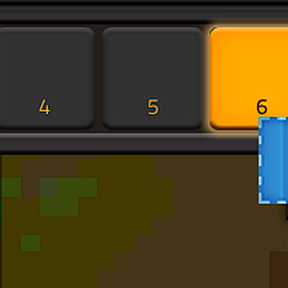
- Favorites Bar — 10, 20, or 30-slot configurable bar at the top of your screen for one-click teleportation
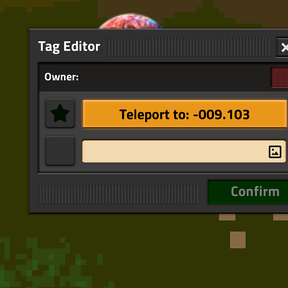
- Map Tag Editor — Right-click the map to create, edit, favorite, or delete tags with icons and text
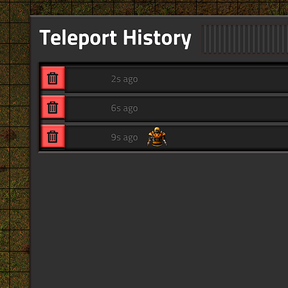
- Teleport History — Scrollable history of recent teleports with keyboard navigation and optional sequential mode
- Drag & Drop Reordering — Shift+left-click to start dragging, rearrange your favorites bar freely
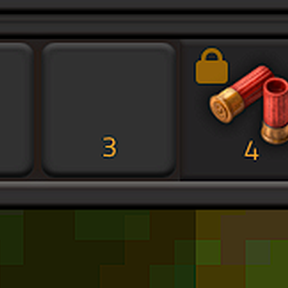
- Slot Locking — Ctrl+left-click to lock a slot; locked slots can't be moved, overwritten, or dragged
- Multiplayer Safe — Tag ownership enforced by player name; only creators and admins can edit
- Surface Aware — Favorites, tags, and history are tracked per surface (Nauvis, Vulcanus, etc.)
- Multi-Language — Automatically detects your game language; community translations included
Getting Started
After installing the mod, look at the top of your screen for the favorites bar.
| Action | How |
|---|---|
| Teleport to a favorite | Left-click a slot |
| Edit a favorite / open tag editor | Right-click a slot |
| Lock / unlock a slot | Ctrl + left-click |
| Start drag & drop | Shift + left-click, then click destination |
| Toggle bar visibility | Click the eye button |
| Open teleport history | Click the history button, or Ctrl+Shift+T |
Empty slots are always available — just waiting for your next tag.
Map Tags
Creating & Editing
- Right-click anywhere on the map to open the Tag Editor
- Choose an icon and/or enter text (at least one is required)
- Click the star to mark it as a favorite
- Click Confirm to save
You can also right-click any existing favorite in the bar or any map tag to edit it.
Teleporting
- From the favorites bar: Left-click any populated slot
- From the tag editor: Click the teleport button
- Hotkeys: Ctrl+1 through Ctrl+0 teleport to favorites 1–10
Teleports are blocked while you or your vehicle are moving — come to a full stop first.
Ownership & Permissions
- Only the tag creator (or a server admin) can edit or move a tag
- Anyone can favorite any tag and teleport to it
- Ownership is tracked by player name for multiplayer consistency
Teleport History
TeleportFavorites records your teleport destinations so you can revisit them later.
What gets recorded
- Teleports from the favorites bar (left-click or hotkey)
- Teleports from the tag editor teleport button
What does NOT get recorded
- Navigating through history itself (prev/next)
- Teleports from other mods or console commands
Using history
- Open the history modal from the favorites bar button or Ctrl+Shift+T
- Click any entry to teleport there; the modal stays open for multiple jumps
- History is per-player and per-surface — you only see your own, for your current world
- Up to 128 entries are stored; oldest entries are removed automatically
Keyboard Shortcuts
| Action | Shortcut |
|---|---|
| Toggle history modal | Ctrl + Shift + T |
| Previous entry | Ctrl + Minus |
| Next entry | Ctrl + Equals |
| First (oldest) entry | Ctrl + Shift + Minus |
| Last (newest) entry | Ctrl + Shift + Equals |
| Clear all history | Ctrl + Shift + Backspace (modal must be open) |
Sequential History Mode (Experimental)
Problem: You teleport to a favorite, run around building for a while, then teleport somewhere else. When you press "Previous," you land at the original teleport destination — not where you were actually standing when you left.
Solution: Sequential History Mode records both your departure location and your destination as separate entries in the history stack.
How it works
When you teleport in sequential mode, two entries are pushed onto the stack: first your departure position, then the destination. Pressing "Previous" once takes you back to where you were standing before the teleport. Pressing it again continues backward through earlier entries.
Smart filtering keeps the history clean:
- Trivial hops — if your departure and destination are within 32 tiles of each other, nothing is recorded
- Consecutive duplicates — if a new location is within 20 tiles of the most recent entry, it is silently collapsed
How it changes navigation
| Navigation | Standard Mode | Sequential Mode |
|---|---|---|
| Previous (Ctrl+Minus) | Goes to the previous destination | Goes one step back (first press = your departure point) |
| Next (Ctrl+Equals) | Goes to the next destination | Goes one step forward |
| History modal display | Shows each destination | Shows each entry (departures and destinations interleaved) |
How to toggle
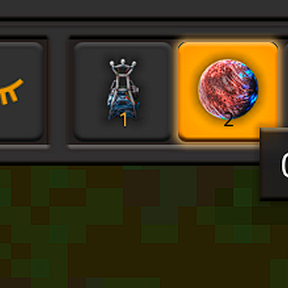
Click the history mode button on the favorites bar (next to the history scroll button). The icon reflects the current mode:
- Finger pointer = Standard mode (destinations only)
- Numbered list = Sequential mode (departures + destinations)
Notes
- Experimental — behavior may change in future updates
- Existing history entries continue to work normally when switching modes
- Toggling the mode does not delete any history
- Each player controls their own setting independently in multiplayer
Multiplayer & Surfaces
- All data (favorites, tags, history) is organized per surface — no cross-world confusion
- Tag editing is restricted to the owner or admins; favoriting and teleporting is open to all
- Player data is cleaned up automatically when a player leaves
Surface Switching
When you change surfaces (portals, admin commands, space platforms), your favorites bar and history update automatically to show data for the current world.
Settings
All settings are under Mod Settings → Per Player:
| Setting | Default | Description |
|---|---|---|
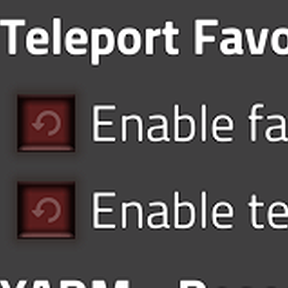
| Enable favorites | On | Show the favorites bar and all related features |
| Enable teleport history | On | Record teleport history |
| Sequential History Mode (Experimental) | Off | Record departure location alongside destination |
| Max Slots | 10 | Number of favorite slots (10, 20, or 30). Warning: lowering this value deletes favorites beyond the new maximum |
Multi-Language Support
TeleportFavorites automatically detects your game language. Community translations are included for many languages. If you find missing or incorrect translations, please report them on the mod portal.
Debug Commands
Console commands for troubleshooting:
| Command | Description |
|---|---|
/tf_log_level debug |
Enable verbose debug logging |
/tf_log_level production |
Disable debug logs (default) |
/tf_log_level |
Show current level and options |
/tf_debug_info |
Show current debug configuration |
FAQ
I can't teleport to my favorite.
Check that the destination has a safe landing position and that you're not moving.
Can I teleport with my vehicle?
Yes. You'll bring along whatever vehicle you're riding. The vehicle must be at a full stop.
Why can't I edit someone else's tag?
Only the tag creator or a server admin can edit or move a tag. Anyone can favorite it.
What happens if I lower my max slots?
Favorites in slots above the new maximum are permanently deleted, even if locked. Manage your slots before lowering.
Links
- Mod Portal: TeleportFavorites
- Source & Issues: GitHub
Attribution
This mod uses graphical assets from Factorio, © Wube Software Ltd. Used with permission under the Factorio modding terms. All rights reserved by Wube Software Ltd. These assets are only for use within Factorio and Factorio mods.
Some images are courtesy of icons8.com.